
Technical Documents · Manuals

Operate it correctly from day one.

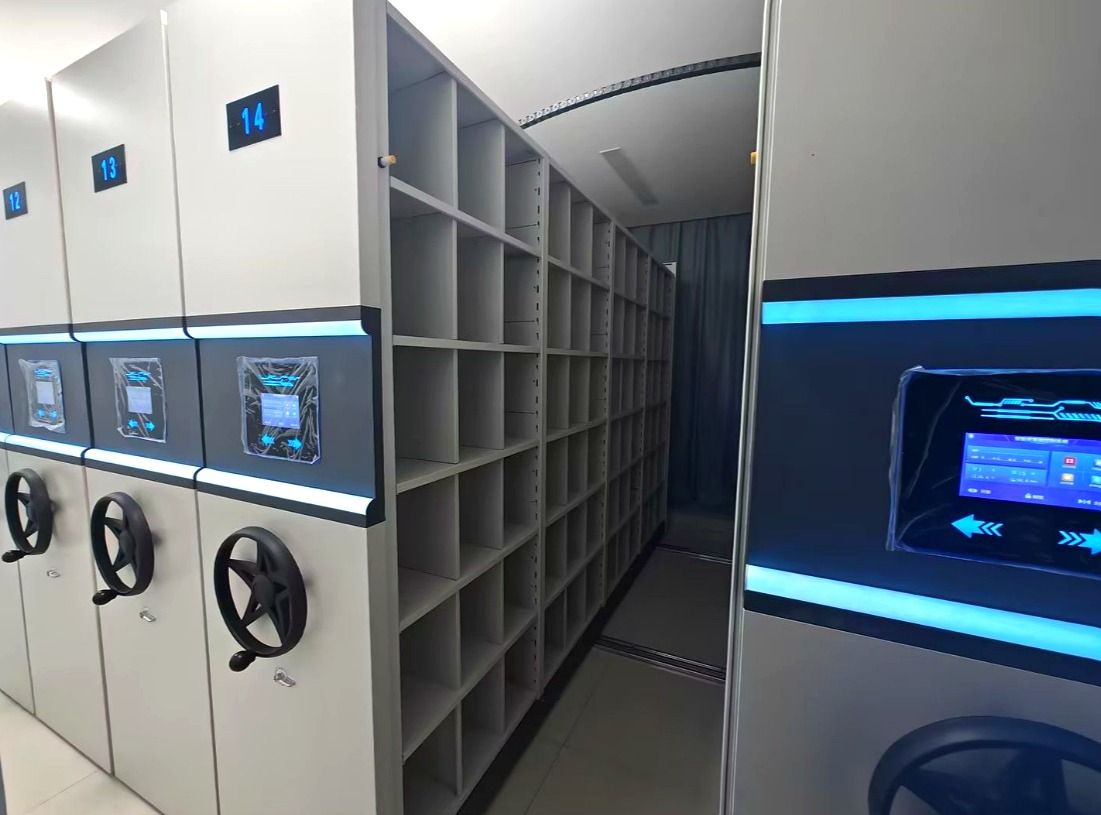
The manual below is the English edition for the 15.6-inch smart management terminal (V6.0.0). Manual and electric systems follow the same safety rules — only the drive differs. Printed copies ship with every order; the file is always here.

Smart mobile compactor with a 15.6-inch touch terminal for shelf management
Table of contents

Eight chapters your operators actually read.

01

System Login

Unlock with the registered account. Default account 188 8888 8888, password 123456 — change it before the room opens.

02

Shelf Opening

Move a run left or right from the terminal to open a working aisle; the system clears the gap before it moves.

03

Shelf Closing

Drive the open aisle shut and confirm the run is home before anyone leaves the bay.

04

Stop & Emergency Unlock

Stop a moving run instantly, and unlock the drive from the panel if a fault holds an aisle open.

05

Area & Column Set

Define columns per zone, groups, layers and boxes per layer, and the fixed-column position for your layout.

06

Running Parameters

Set speed (high / medium / low), max running time, and the over-distance limit that triggers the derail alarm.

07

Users & Advanced

Add operators with 11-digit accounts, configure auto-sleep, welcome text and serial port settings.

08

Support & Versions

Find hardware and software versions, the service telephone, email and web portal from the terminal.

Read this before the first move.

Smart shelving moves under motor power. Three rules keep the aisle safe.
  • Keep the aisle clear of people and carts before pressing open or close.
  • Never step between two closing runs — the photocells stop travel, but nobody tests a safety on themselves.
  • If a run will not home, use Emergency Unlock and call support; do not force the hand wheel.
  • Change the default login before the room is handed over to operators.
  • Respect the running-time and over-distance limits — they exist to protect the rail.
  • Train every operator on chapters 01–04; sign the sheet in the acceptance file.
First configuration

Five steps to a working terminal.

Run these in order on the 15.6-inch smart terminal before the room opens. They turn a delivered system into one your operators actually control — and they are the chapters the acceptance file references.

Change the default login

Replace account 188 8888 8888 / password 123456 with a site account before anyone operates a run. The default is in the manual for first boot only.

Chapter 01 · System Login

Map your room

Enter Area & Column Set: zones, groups, layers, boxes per layer and the fixed-column position. The terminal counts against this map, so it must match the physical layout.

Chapter 05 · Area & Column Set

Set movement limits

Choose speed (high / medium / low), max running time and the over-distance limit that triggers the derail alarm. Stricter limits protect the rail under heavy daily cycles.

Chapter 06 · Running Parameters

Add your operators

Create 11-digit operator accounts, set auto-sleep, welcome text and serial-port options. Each operator signs against their own account in the training record.

Chapter 07 · Users & Advanced

Prove one move

Open a single run from the terminal and drive it home. Confirm the aisle fully clears, the photocells stop travel, and the run seats before you release the room.

Chapters 02–03 · Opening & Closing

Record the versions

Read hardware and software versions and the service contacts from the terminal, and write them into the O&M file so future service quotes the right build.

Chapter 08 · Support & Versions
Troubleshooting

What operators can fix, and what they cannot.

Most first-day calls are one of six issues below. Clear the aisle and reset the run before you escalate — and never force a hand wheel against a fault.

SymptomLikely causeOperator action
Run will not openWrong or unchanged default login; account locked after retries.Confirm the 11-digit account; if locked, use Emergency Unlock and reset via service — do not create a new run.
Travel stops mid-aislePhotoelectric safety tripped by an obstruction or a dirty sensor lens.Clear the aisle and wipe the sensor, then re-open; if it repeats, close the run and report the sensor.
Run will not homeOver-distance or derail limit triggered; rail obstruction.Use Emergency Unlock from the panel, check the rail for debris, and call support — do not force the hand wheel.
Screen unresponsiveAuto-sleep engaged, or a supply dip at the run.Tap the screen to wake; check the supply point per run and confirm the breaker is on.
Wrong column countArea & Column not set for the active zone.Re-enter Area & Column Set for that zone from the terminal before moving stock.
Slow or jerky moveSpeed set to Low, or load uneven across the run.Check Running Parameters and redistribute weight evenly across bays.
Upkeep

A maintenance rhythm that protects the warranty.

Cleaning and inspection intervals from the manual. Conditions with heavy dust, humidity or daily full cycles move one step up the scale.

IntervalRoutineResponsible
DailyVisual aisle check — clear obstructions, confirm aisle fully opens and closes.Operator
WeeklyWipe shelf surfaces and terminal screen; verify hand wheels turn free on manual runs.Operator
MonthlyInspect rail and anchor points; check that photo-sensors and safety edges are clean and unobstructed.Facility
AnnualService by certified engineer — motor, brake, torque log and software version check; logged in the O&M file.Service

Download the full manual.

Smart Compactor Shelving Management System — User Manual, English edition for the 15.6-inch terminal, Version V6.0.0 (July 2026). The complete procedure set, settings tables and support contacts, ready to file with your O&M binder.

Download PDF / Word →

Manuals for the manual & electric systems?

Same chapters, different drive — request the matching edition and we issue it against your serial number.

Request manual set →